How to Enable MemberDash Login in your WordPress Page
The easiest way to enable the MemberDash login is by using the shortcode [ms-membership-login] in your wordpress page.
This shortcode displays the login/lost-password form, or for logged in users a logout link.
There are also some helpful parameters that can help you customize it.
- title (Text) The title above the login form
- show_labels (yes|no) Set to “yes” to display the labels for username and password in front of the input fields
- redirect_login (URL) The page to display after the user was logged in
- redirect_logout (URL) The page to display after the user was logged out
Examples:
To display a customized title above the login form.
[ms-membership-login title=”My Site’s Login”]
To set a redirect link after logging in.
[ms-membership-login redirect_login=”https://yourwebsite.com/link”]
To set a redirect link after logging out.
[ms-membership-login redirect_logout=”https://yourwebsite.com/link”]
How to Enable MemberDash Registration
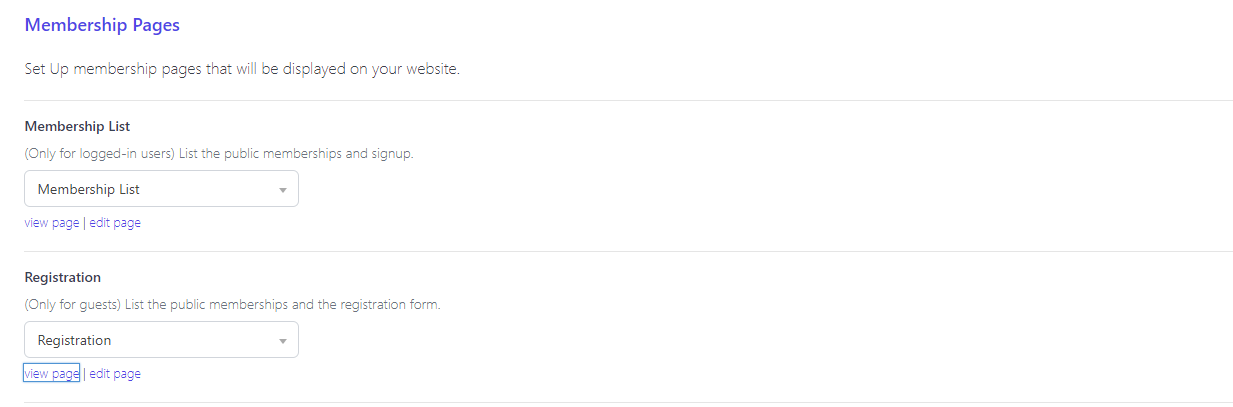
To enable Memberdash’ Registration, make sure that you have a selected page for the Membership List and the Registration page.
Navigate to MemberDash > Settings > Membership Pages to enable them.
Shortcodes
Alternatively, you may use shortcodes that you can display on specific pages you want.
To display a list of all memberships the current user can sign up for.
[ms-membership-signup]
To display a registration form
[ms-membership-register-user]